Web Security Flaws Put Familiar Sites in Focus: How to Browse More Safely
Recent flaws and compromised sites show why browser updates matter—and why familiar pages can still make unsafe requests.

A familiar website can still put your device at risk. Attackers have used compromised legitimate sites to show fake verification pages that urge visitors to install malware, so recognizing a site—or having it bookmarked—doesn’t make every instruction on it safe.
That risk has drawn more attention after several web security problems surfaced within the same week. Attackers were exploiting two flaws in PHP; researchers disclosed a critical flaw in Brotli software used by Node.js; and eight compromised security certificates raised questions about how browsers and apps check a site’s identity. These incidents have different causes and levels of risk. Together, though, they’re a reminder that web safety depends on several layers of software and infrastructure working as intended.
PHP runs about 7 in 10 websites whose underlying programming language is known. Node.js is used by 7.4% of websites with an identified web-server technology, according to W3Techs. Both technologies can run behind the scenes, so flaws may affect the sites that depend on them. Most browsers have blocked the compromised certificates, though other software and devices may still need updates.
None of this means you need to stop browsing. It does mean that a site’s familiar name, encrypted connection, or polished appearance shouldn’t settle the question of whether a request is safe.
Judge the request, not just the address
Checking the web address is useful, particularly when a link may lead to a lookalike domain. But a genuine site can also be compromised. Researchers have documented malicious instructions on hacked WordPress sites, as well as attacks using fake verification pages. The key question is whether the page is asking you to do something that makes sense for the task you came to complete.
Reading an article shouldn’t require opening PowerShell. Watching a video shouldn’t require running a command to “repair” your computer. Yet ClickFix attacks dress up harmful commands as routine verification or troubleshooting. Their trick is to make the dangerous step seem like the quickest way past an obstacle. A page may claim that you need to confirm you’re human, install an update, or enable a feature before you can continue.
Pause when a site asks you to install software, run code, allow notifications, or change device settings unexpectedly. Ask yourself whether that action is a normal part of what you’re doing. If the answer isn’t clear, close the prompt and check the claim through a channel you open yourself.
HTTPS protects the connection, not every page
A secure connection matters, but it answers a narrower question than many people assume. HTTPS encrypts the connection between your browser and a website. It doesn’t prove that the page is benign, that its content hasn’t been altered, or that a download is safe. Browser protections against harmful content are another layer, and no single check can establish that every page is trustworthy.
That distinction helps explain why a convincing page can still be dangerous. A browser can establish an encrypted connection to a site that attackers have compromised. It can also show a warning for a known threat, but an unfamiliar or newly changed page may not yet be flagged. Treat warnings as a signal to leave the page, and treat the absence of a warning as only one piece of information.
Keep your own software current
You can’t patch another organization’s web server, but you can reduce the risk on your device. Turn on automatic updates for your operating system, browser, and applications where available. Install updates promptly instead of repeatedly dismissing them: fixes can close flaws that attackers might otherwise use to reach files or accounts.
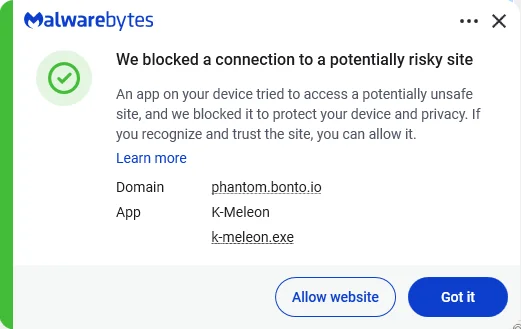
Keep your browser’s phishing and malware protections enabled. Extensions such as Malwarebytes Browser Guard can warn about known dangerous sites, harmful downloads, and clipboard hijacking. Those checks can help, but they can’t certify that an unflagged page is safe. A warning deserves attention rather than another click to get past it.
Use strong, unique passwords stored in a password manager, and enable multifactor authentication on important accounts. These steps help limit the damage if a password is exposed or guessed. They don’t make it safe to enter credentials into an unexpected login page, so repeated or unfamiliar sign-in requests still merit a pause.
Verify unexpected instructions independently
If a page says your browser needs an update, close the prompt and check through the browser’s own settings. If it claims an account or service needs attention, open the app or support page yourself instead of following a link or command provided in the prompt. This adds a small step, but it makes it harder for a fake page to steer you toward a harmful download or an account theft attempt.
Watch for unexpected downloads, redirects, and repeated login requests—even on sites you use regularly. If a page looks wrong, leave it. Real-time anti-malware protection may help detect or block threats on your device, while tools such as Scam Guard can help assess a suspicious request and suggest next steps.
The practical habit is straightforward: update your software, keep browser protections on, and question any page that asks you to run code or make an unexpected change. A familiar site can still serve a bad instruction, so trust the task you intended to do more than the prompt trying to hurry you through it.
From reporting threats to removing them.
Keep threats off your devices by downloading Malwarebytes.